-
Upcoming
Live Online Workshops- Excel and SharePoint: I didn’t know you could do that!
- Easy Tabs Interface - Simple SharePoint Navigation for Complex Information
- Train the Trainer: Materials and Resources for in-house SharePoint Training
- Become Your Company’s SharePoint SuperStar!
- Hack SharePoint Web Part Displays with XSLT
- Business Solution: Health Care Case Management
- Killer Calendars in SharePoint
- The Basics of Content Types
- Business Solution: Create a Compliance Report Intake System in SharePoint
- Business Solution: Manage Input with Dynamic Feedback Forms
- Live Blogging at SharePoint Conference 2009
-
Ongoing Series
-
Authors
-
SharePoint Resources
- Bits of SharePoint
- Codeless Solutions for SharePoint
- Get the Point
- Innovation Matters
- Path to SharePoint
- Paul Galvin
- SharePoint 911
- SharePoint Blank
- SharePoint Blogs at SharePointU
- SharePoint for Non-Developers
- SharePoint Forums at SharePointU
- SharePoint Screencasts
- SharePoint Use Cases
- Social Media Talk Tweets
- The Sanity Point
- The Weekly Newsletter

| Weekly Newsletter Signup |
Jun
19
EndUserSharePoint.com: Taming the Elusive “Calculated Column” – Customizing a Task List

A good place to start with learning how to work with calculated columns is to start with an existing list and see what additional functionality you can add to give it more “value” (and make it worth using).
In this walkthrough, we’ll be looking at the default OOTB (”Out of the Box” for the non-acronym friendly) “Tasks” list. I want to start with this particular list because I’ve always felt that it could use some help since in it’s default state, it’s almost a bit “too” basic to really be used effectively.
Yes, it does allow you to assign items to individuals and groups and give them, what I like to call “suggested”, “Due Date” on its completion, but what if it takes them longer to complete the task? What if they have a large number of tasks assigned…how do you set up a decent view to display and prioritize them (overdue items, upcoming due dates, number of days left to complete, etc.)? How can you go back and audit their performance (Do they normally complete tasks on time?)?
We’re going to add in 5 additional calculated columns that will allow us to setup more complex filters and views to make accountability and tracking of pending and completed tasks more useful and available.
The 5 columns we’re going to create are the following:
- “Date Completed” – This one is all about archiving and finding work history, or how much work users have been able to accomplish – useful for custom views and filtering.
- “How many days left to complete?” – Another column that will aid in custom views and filtering to assist in time management of upcoming task “Due Dates”.
- “Days Overdue” – Advanced version of the “How many days left to complete?” column that takes in account for after the task has been completed (and doesn’t use any negative numbers).
- “Completed Early?” – Who doesn’t like bonuses for work completed ahead of schedule? This one can be useful in auditing past performance or trends.
- “Overdue?” – Visually used to create a custom view that at-a-glance will let users know if they have Tasks that are overdue.
I encourage you to read through the “Introduction to data calculations“ article on the MS Office site. Although basic in its examples, it does contain some much needed information on some of the particulars in working with calculated columns.
As mentioned in my previous article, Taming the Elusive Calculated Column, we’re going to be designing these in MS Excel to take advantage of error checking and design ease-ability, then convert them to a “SharePoint”-friendly formula.
As a pre-cursor, I want to mention that we’ll be working with a few different data types that are all classed as a “Constant” type, data that does not vary:
- Strings – Strings (text field) can contain a set of up to 255 characters and are enclosed in a set of quotes (”"). In our examples we’ll only be using simple strings, but in reality a string could contain anywhere from and empty value (”") and up (i.e. “John”, “John Smith”, “John Smith is a person”, etc.).
- DateTime – a set of characters that represents a specific date and/or time. In SharePoint, dates are stored as sequential numbers starting with the serial number 1 representing December 31, 1899. In the example of January 1, 2008, the serial number would be 39448 because it is 39,448 days after January 1, 1900 (this isn’t too important to remember now, but will make sense later as we convert our formulas into compatibility for SharePoint and want the dates displayed in a meaningful manner).
- Numbers - any range of numbers (can be positive or negative and contain decimal places).
- Boolean - an evaluation that returns either a “Yes” or “No” value (can be written to display a specific value if “Yes” or something completely different if “No”).
To begin, open Excel and enter the following in cells A1 through A12:
Title
Assigned to
Priority
Status
% Complete
Start Date
Due Date
Date Completed
Completed Early?
Num of Days Left
Days Overdue
Overdue?
This sets up a representation of the “Tasks” list with placeholders for our soon-to-be created columns.
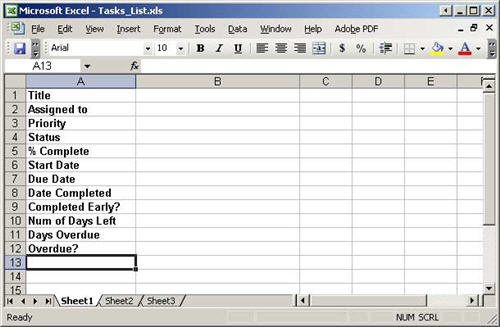
Enter in some sample information in the “Title” through “Due Date” fields (B1 through B7):
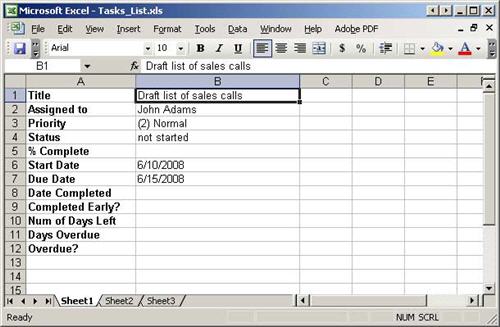
To create the formula for the first custom column (”Date Completed”), we need a way to first find out if the task is actually completed. If it is, we’ll then grab the date and display it in the format we want. For this we’ll use the “IF” function as follows:
Formula:
=IF(B4=”Completed”,TEXT(TODAY(),”MM/DD/YYYY”),”")
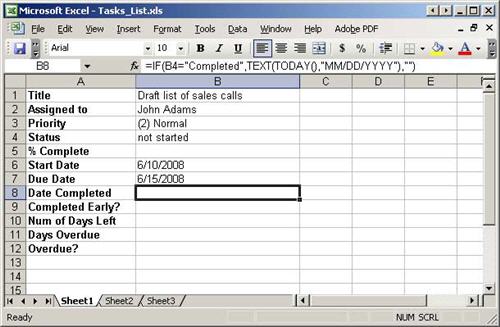
In the above formula, we’re checking to see if the “Status” field (B4) equals “Completed”. If the result of this is “True” (value of the cell is “Completed”; this is a “Boolean” check), we grab today’s date, convert it from “DateTime” to “text”, and then display it in the format of “MM/DD/YYYY” (06/16/2008). If the result is “False”, we don’t display anything.
Dissecting the formula, notice how it’s structured and grouped with parentheses:
=IF(B4=”Completed”,TEXT(TODAY(),”MM/DD/YYYY”),”")
Starting from the left, we have an “equals” sign (=) to indicate that this calculated column will have a value that is based on the formula that follows it.
We then encounter our first function (the “IF”). This tells us that we’re performing a check on some data that produces a result based on whether a specific condition is “True” or “False”.
After the “IF”, we have our opening parenthesis that signifies the start of our condition to evaluate, which is then followed by the actual condition. The condition we’re evaluating is “Does the value in cell B4 equal the text “Completed”?
If the value in B4 does equal “Completed”, the result is “True”, and in this case, for the “True” result, we’re grabbing today’s date (represented by the function “TODAY()”), converting it from a “Date” type into a “Text” type (string) then finally forcing it appear in the specific “DateTime” format we want for it to display in. Additionally, you’ll notice that there is a new set of parenthesis surrounding the “TODAY(),”MM/DD/YYYY”" part. This is because the “TEXT” function has two required parameters when it is used; a value to convert and a text format for it to be displayed in.
Finally, we have an empty set of quotes (”") that are used for the “False” result, followed by the closing parenthesis of the “IF” check.
Breaking this down even more, to really understand this type of formula, the “IF” function contains three parts.
- The logical condition to check (”Does the value in cell B4 equal the text “Completed”?)
- Value if “True” (Display the current date)
- Value if “False” (Display nothing)
So, with our formula:
- The logical condition to check: B4=”Completed”
- Value if “True”: TEXT(TODAY(),”MM/DD/YYYY”)
- Value if “False”: “”
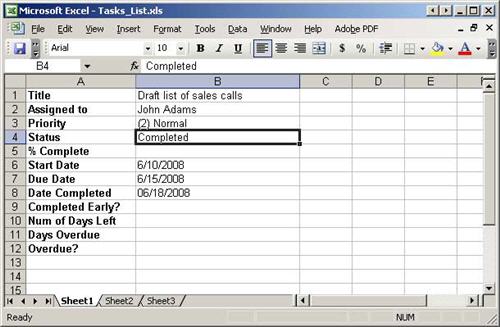
To test this new column, enter “Completed” into cell B4 and you should see today’s date appear in cell B8.
Now that we have the formula working in Excel, how do we now move it into the actual “Tasks” list in SharePoint? Actually, it’s pretty simple, but there are a couple steps that we do need to take to get past some of the errors I mentioned last time.
In SharePoint, go in to the “Tasks” list and its settings page.
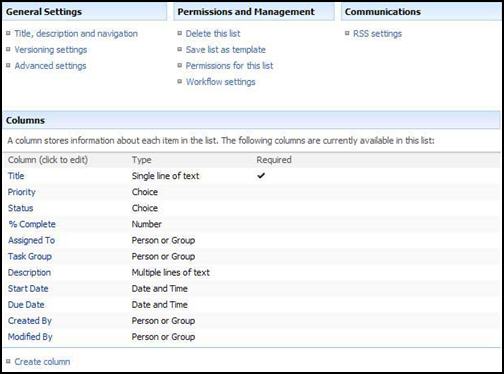
We could simply just copy/paste the Excel formula into a new calculated column and modify it to use the appropriate column name instead of the cell we specified in Excel, but if left as is; it would produce an error message stating “Calculated columns cannot contain volatile functions like Today and Me“. Although this is true (somewhat), we can get around this by instead using a common approach of “fooling” the system to allow us to use the “Today” reference.
To do this, we simply create a new column called “Today” leaving all of its options as default. We can then proceed with our formula and not get the error message (neat huh?).
So, moving forward, create a column called “Today”.

Next, create a column called “Date Completed”. Make it a “Calculated” type and paste in our formula from Excel. Before saving, replace “B4″ with “Status”, remove the parenthesis after “TODAY” () and leave the rest as default (after saving, the system will automatically change the “case” of the “TODAY” field to “Today” – column names are not case-sensitive in our formulas).
Formula in Excel:
=IF(B4=”Completed”,TEXT(TODAY(),”MM/DD/YYYY”),”")
Formula in SharePoint:
=IF(Status=”Completed”,TEXT(TODAY,”MM/DD/YYYY”),”")
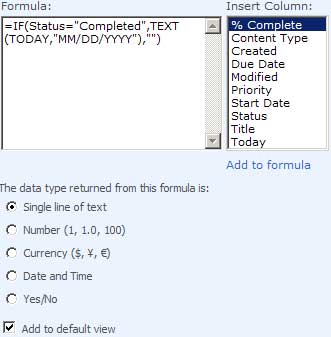
Now, go back into the “Today” column and delete it. This column was simply a placeholder that fools the system into allowing us to use the name for our formula, so deleting it will now match it up with the real “Today” data in the system, but without throwing an error (read more on this here).
To test our new column to make sure all is working, simply create a new item in the list with a “Start Date” of the (default) current date, and a “Due Date” of tomorrow.
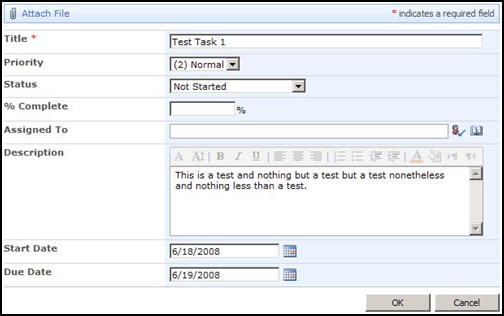
Once saved, we can see our new item:

To now test our new column, go back in and edit the item and change its Status to “Completed”. If everything was done correctly and our formula was written right, we should now see a completed date populated with today’s date.

So what we now have is a way to track when items were completed and use this information in a custom View that can be filtered and/or grouped, by our new column.
One caveat to consider in using this type of formula, is that because we’re using a “Today” reference to set the value of the “Date Completed”, we’re subjecting ourselves to the possibility of inaccurate data if someone were to later (some date after the actual completed date) go in and edit any details of the task item. This happens because in this case “Today”, literally means the current day’s date, so if you were to make an update later, the value of the date is re-calculated to use that day.
Will the current column we just created work? Yes.
Is it the “best” approach to capturing the “Date Completed”? Probably not, but we’ll remedy that later.
Was there value in running through the process of creating the column even though it’s not the best approach to take? I think so (and I hope you did too).
None of the above however, means that our formula is a complete waste, if anything it was good practice for the other columns we’re going to be creating (three of the remaining four all use the “Today” column in their formulas). As we move forward, we’ll probably just replace this particular column with a standard “Date” field where a user can pick the completed date from the calendar popup.
In the next post I’ll be continuing on with the “Tasks” list and adding in the next two columns that will let us know how many days we have left to complete a task (”How many days left to complete” and “Days Overdue”).
Till next time…
- Dessie
Suggestions for future posts on calculated columns are always welcome, and if fact are encouraged. Some of the best scenarios to illustrate are the “real-world” problems that we each face day to day, so if you have an example, an idea you want to explore, or a “Can this be done with a Calculated Column?” question that I can use as the topic of a future post, please submit it through the Contact Form and I’ll see what I can do to work up a post covering it.
 Dessie Lunsford
Points-of-Sharing
“I enjoy figuring out how to get my users to understand what they can do with SharePoint, and “how to do it” – this is probably the biggest hurdle my users have to face.”


Dessie – This is a GREAT start to your series! If someone were to walk through each step of this, it would probably be the best foundation they could have for exploring how to setup conditional formulas.
Looking forward to the next post in the series.
Mark
I’m pretty sure your date completed field above will change everyday – not just when the item is modified.
Kyla,
The thing to remember is that the calculation is static. It wont change unless an update occurs and forces it to re-calculate, which in this case would happen if the item was modified. Because of this, it will retain the original date it was completed as long as its never modified.
For our formula this turns out to be a good thing since we want it to remain unchanged.
For other formulas on the other hand, where you do want a more dynamic change to calculated values (updates daily, weekly, etc.), there’s other approaches that will have to be taken in order to get it to perform in that manner (which I’ll discussing in future posts).
Go ahead and give it a shot by adding in the column and marking a task as “Complete”. If you go back tomorrow, the “Completed Date” will remain unchanged.
- Dessie
[...] EndUserSharePoint.com: Taming the Elusive “Calculated Column” – Customizing a Task List [...]
Kyla – This has been an extended discussion on the SharePointU.com forums for months. Take a look at that discussion and you’ll see that people are trying to resolve the issue through coding since there is no apparent, OOTB solution.
Mark
Dessie,
Does a workflow on the list with the calculated column using the “when an item is updated” condition cause items not edited to recalculate?
Great article. I’ve been using calculated columns for a while and have used the “Today” trick, which seems to work well enough. One thing to remember is that you have to recreate the dummy “Today” column if you want to edit the “Date Completed” column (e.g. to change the dtae format).
One thing I’ve struggled with is whether there is anyway to create a calculated hyperlink. I’ve been able to do relatively simple ones using the CONCATENATE formula with a fixed part of a URL (e.g. “http://www.endusersharepoint.com/?p=”) and then data from one of the columns (e.g. page number) to complete it. While it does work, it doesn’t look very pretty as the user sees the full URL because I can’t work out how to get a description to have a calclated link (e.g. the user would see http://www.endusersharepoint.com/?p=410 wheareas I would prefer them to see “Great article on calculated columns”). Any suggestions?
Adam
Adam,
I think there are three approaches to that:
1. Create a custom view of the web part displaying the content (by modifying the XSL used in the style sheet). Requires some NotePad development.
2. Create a custom column. Requires some Visual Studio development.
3. Use an existing column type (like hyperlink) and push the dynamic data to that column using workflow. Some SPD development.
I prefer modifying the XSL because it is very easy to undo or revert to the default style if I mess up.
Good Luck,
Paul
Paul,
Workflows are attached to individual items on lists, so if using a “when an item is updated” condition, it should only update the item that initiated the workflow and not any of the other items.
Have you seen something different than this?
- Dessie
Adam,
Actually, In my next article I’ll be discussing the need to recreate the dummy “Today” column when making formula changes since we’ll be using multiple calculated columns that use the reference (this one was running a little long which is why I didnt discuss it here).
On the “Calculated Hyperlink” question, I’ve seen this asked several times on different forums and have yet to find a real workable solution that I like. Paul’s suggestions seem to have promise though, so I’d recommend running through them to see if one of the ideas will work for you.
- Dessie
Can a calculated field somehow help me display the name of the person who last replied to a post in a Discussion Board?
@Nancy
Calculated Columns need the data to exist in the same record (or row) of the list. With discussion lists, you’re actually seeing a Discussion record (based on the content type Folder) and any number of Messages (based on Item content type). Because the created by for the Message lives in a different record, calculated columns alone can not access it.
Some code, some workflow, or a customized web part can reach and display that data however.
I see. Thanks!
I also was not sure if there was an available site column that I just was not able to find, which would give me the “name of last person replying” to posts. “Modified by” didn’t do what I wanted either.
This post comes at a great time. I’m trying to implement exactly this type of thing in an issues list.
Can you please provide a preview of how to create the Overdue functionality? I need to get this working asap.
Thanks!
LOVED your hack for using [TODAY] variable in calculated fields. Did you know you can also use this trick in a View filter? I added the Today column as spec’d in an existing list, then created a view of the list with a filter using =>[Today]-14 and =< [Today] to get a view of items in the past two weeks. Deleted the Today column. Worked like a charm!
I wonder what issues you might encounter creating a Site Column called Today so it’s always available.
Amy,
The “Overdue” formula is simply an “IF” function that performs two checks that both must result in “True” (as individuals) in order for the entire check (both of them together) to be “True”. Any other result will return a false (I’ll be discussing the concept of a “Truth Table” that details this in next weeks post).
The formula for this (in SharePoint) is:
=IF(AND([Due Date]<Today,[Status] “Completed”),”Yes”,”No”)
The check is looking for two things:
1. Is the “Due Date” field less than today?
2. Is the “Status” field anything but “Completed”?
If both of these are true (and only if “Both” are true), the result will be “True” which displays the text “Yes”.
Any other result (1st one true, 2nd one false – 1st one false, 2nd one false – 1st one false, 2nd one true) will result in a “False” which displays the text “No”.
I’ll detail this all better once I get the post up that discusses this (not this week’s post, it’ll be next week’s).
Hopefully this will give you some ideas.
- Dessie
Mike,
Actually, for Views, the [Today] reference is completely acceptable to use as is (without having to first create a “temporary” column – you only have to do this if you plan to use it in a calculated column)…just make sure and surround it in brackets when using it in a View or it wont be recognized and will throw a date-related error.
See the following for details on this and the use of the [Me] reference.
http://office.microsoft.com/en-us/sharepointtechnology/HA011612401033.aspx (this is for WSS 2.0, but is applicable to the current version as well).
Not sure if the Site Column idea would really work since you’re only accessing the available fields in the current list when using calculations and it’s already a system-recognized reference in Views, but there may be other opportunities you’d gain in other aspects of the site.
Play around with it and see what you can discover then post back here – it’ll be interesting to see if you can do anything neat with the idea.
- Dessie
[...] EndUserSharePoint.com: Taming the Elusive “Calculated Column” – Customizing a Task List [...]
GREAT tip on temp column “today”
For the task column!! Regarding the task column “Date Completed” – isn’t it effectively equivalent to the system column “Modified”? (system date that record was last changed.)
Dan,
You are correct, and in fact you could use either field (Today, or Modified) in this formula and get the same results.
It’s a preference thing I suppose, and what you’re going to do with the formula in the end. For these simple formulas you could create each of them multiple ways…so mine may not be the approach you’d take in the end, but at least you’ll have options
Great catch though, it’s nice to hear that you’ve been digging into this some and discovering alternatives.
- Dessie
Is there any way to implement HYPERLINK capability within a calculated field, without using SharePoint Designer? I want to generate links using other field values.
http://finance.google.com/finance?meta=hl%3Den&q=DJI
So if a list title is DJI, the calculation would present the link above as “DJI”, or whatever the text I wanted to pass might be. Excel has a handy function called “HYPERLINK” but that function doesn’t work in SharePoint 2007.
You can use =”http…” & [TITLE] but that displays the whole link, which can be really ugly and takes up space on the All Items listing.
@Mike
I blogged a solution that might work for you.
http://autosponge.spaces.live.com/blog/cns!D7F85948C20F0293!446.entry
[...] you haven’t read through the previous two articles in this series (Part I, Part II), I would encourage you to read them first as we’ll be continuing on with the use of [...]
Dessie,
I found that if you use the “Modified” column as part of your formula for the calculated column, it is always seen as 1/1/1900 (aka empty) by the formula. Have you seen this strange behavior too?
Kiki – Dessie is taking a week off, doing some well deserved 4-wheeling. He’ll respond when he gets back.
Regards,
Mark
Kiki,
One thing to keep in mind is that SharePoint stores dates in their “Serial” format (a sequential number starting with “1″ reflecting the date of December 31, 1899), so if you’re seeing a value of “January 1, 1900″, it’s probably just because the date isn’t formatted correctly.
Can you post back with an example of the formula you’re trying to use with the “Modified” column reference? I’m sure we can come up with an answer of how to make it display correctly.
- Dessie
[...] you haven’t read through the previous three articles in this series (Part I, Part II, Part III), I would encourage you to read them first as we’ll be continuing on with [...]
Hi, I liked this article very much, but have a need to include the time with the date, so I attempted to modify the instructions by using NOW() instead of TODAY(). The result is that when I change the status field to Closed, I the Closed Date field shows #NAME?. The equation seems to be looking for the NOW column and not getting the current date and time. Any suggestions ?
can somebody tell me that how can we copy the items from a list to the task list using sharepoint designer workflow.
Roy,
In this case, I’d suggest using the “Modified” column instead of “Today”.
Something like this:
=TEXT(TIME(HOUR(Modified),MINUTE(Modified),SECOND(Modified)),”hh:mm:ss”)
This formula will grab the Hour, Minute, and Second of the time the item was last modified and display it in the “hh:mm:ss” (e.g. 15:47:32) format.
Or (to meet with your requirement of both date and time), you can use the following:
=TEXT(Modified,”MM DD YYYY – hh:mm:ss”)
This will grab all the details of the modified column and allow you to display it as you see fit using standard date/time formatting rules.
Hope this helps,
- Dessie
Thanks Dessie, That is a step in the right direction. At first it appears to be exactly what I needed. I found that if I change the ‘Status’ column to closed, the current date and time are added to the Closed Date calculated column. The problem I found, is that if someone were to go into the record at a later time and modify one of the other columns, the Closed Date column gets updated with the latest modified date/time. I need this value to not change unless the value of the Status column changes.
On a slightly different subject, is there someplace that lists the objects such as ‘Modified’ that are recognized by SharePoint and can be used in calculated columns ?
Roy,
Because of the manner in which calculations are performed (recalculated each time an item changes), using a reference to another field (that updates when the item is modified) may not be the way to go in this case.
One option you could look at is to just create another “Date/time” field called “Completed Date” (this will be displayed on the “New Item” and “Item Details” forms) that is only filled in when an item is completed (you’d have to educate your users to only fill this in when an item is completed.
You could then (possibly) use this in combination with another calculated field (based on the “Completed Date” field) that includes logic to see what the “Status” field is currently set at…displaying different information based on the vaue of the field (similar to the other formulas I went over in this series).
For your other question, the best resource is the MS Office site (http://office.microsoft.com/en-us/sharepointtechnology/HA101215881033.aspx) that gives an intro to “Data Calculations”.
As a quick list however, you can generally use any column (in the same list) that is of the following data types:
single line of text
number
currency
date and time
choice
yes/no
calculated
There are (always) exceptions, but for the most part, if it shows up in the list of available columns (just to the right of the calculation text window) you can use it.
Hope all of this helps,
- Dessie
In my opinion the “Today” trick is a waste of time, I have explained it here:
http://pathtosharepoint.wordpress.com/2008/08/14/calculated-columns-the-useless-today-trick/
Having the same issue as Kiki.
Using Simple formula such as [modified] – [created]
or [Created]+ (a certain number of days)
the formula works the first time data is entered, but when the list item is modified it starts calculating as 1/1/1900…..
Any suggestions?
Mike,
What format did you use for your calculated columns? You are calculating a number of days and you should format them as number, not date (text should be OK too).
Christophe
The calculated column is set to a date.
So if I change the value to Text and use =TEXT(Created,”MM/DD/YYYY”),””)
that will resolve the issue?
Do not change your formulas, for example:
= [Modified]-[Created]
Under the formula box, for “The data type returned from this formula is:”, select text or number, not date.
Christophe
Changing the Field Type to Text didnt work. Changed the value to 39,689.534768519
Am I doing something wrong?
Mike, this looks better I’d say 39,689 means August 2008. Could you provide a precise example with the values of the created date, modified date, and paste the exact formula you used?
Mike,
Christophe seems to be on track with this, but I thought I’d add in a quick mention…
The serial number you’re seeing “39,689.534768519″ is actually fine, and in fact (as Christophe mentioned), is referencing “August 29, 2008″.
The simple way of converting that back to a “readable” format is to use a formula similar to what you posted earlier:
=TEXT(”39,689″,”MMMM DD, YYYY”)
This will return literally “August 29, 2008″.
Does this help any?
- Dessie
very nice post…
on the calculated hyperlink question:
If you already have a list with items in it, the best way to achieve this is following these steps:
1) Create a workflow that updates the hyperlink field on update item.
2) Create a dummy field.
3) Edit list is datasheet view. Copy and paste and column in the dummy column firing the workflow to update the hyperlink field.
4) Delete dummy field.
Hi,
Thanks for this tutorial and I have managed to get it working fine but I get a slight issue when I export to excel that the Resolved Date coloumn comes up as #REF.
I need the date in Excel so I can compile some metrics from SharePoint……..any ideas on how to rectify this or have a workaround ?
Thanks in advance.
[...] a look at the series “Customizing a Task List” (Parts 1-4): http://www.endusersharepoint.com/?p=410 http://www.endusersharepoint.com/?p=446 http://www.endusersharepoint.com/?p=458 [...]
Hi,
I’ve had a read of the articles but I still can’t seem to find a way of when exporting to excel to keep the date format instead of seeing #REF in the ‘Date Completed’ field.
Any tips/advice would be greatly appreciated?!
Hi, Is there anyone who can help me or point me in the right direction for the above query ?
Your help would be much appreciated.
I have an existing list where I’m performing the above. I already have a number of items that are completed. When I add the calcuated field to review completed, it goes back and marks the completed date for anything that says Completed as today (the day I entered in the calc). Is there a way to exclude prior marked completed items?
[...] Taming the Elusive “Calculated Column” – Customizing a Task List [...]