jQuery – List and Document Library Filter Version 2.0 – Part 2
 Guest Author: Peter Allen
BitsOfSharePoint
On Oct. 20th I released a solution that would filter any list in SharePoint. The purpose of the solution was to make it easy to get to the information needed from the list currently being viewed. Original article: jQuery – List and Document Library Filtering Solution In the latest version 2.0 the purpose has not changed, but improvements have been added. Based on feedback from others there were a few features requested.
Here is what has been improved in version 2.0:
- Speed Improvements – Improved the speed to display the results by 4x for large lists.
- Grouped Lists – Added a solution to better able grouped list filtering.
- Add Comments – You can easily add comments to the filter box for the end-user.
- Filter Box Position – You can now easily position the filter box to the left, center or right on the page.
- New Options Interface – The new options interface makes it so that any of the above customizations can be done code free.
Speed
The first version slowed a bit for larger lists. I reworked the code to bring additional improvements to the speed of showing the filtered results. As a result the filtering is about 4 times faster than before. This should make filtering larger list much better.
Grouped Lists
The first version did not handle grouped lists if they were collapsed. There are a few challenges with collapsed lists. The big one is that none of the data in the list is loaded. This is good from a page loading stand point and makes the page come up faster. But since there is no data loaded the Filter List has nothing to filter and the results show nothing. The solution I deployed uses one of Paul Grenier’s jQuery solutions to expand all groupings. So the solution provides a link to expand all groupings. This will then load all the data and the Filter List solution will then have something to filter. You will notice that grouping headers disappear after filtering. I do not keep the grouping headers for several reasons. The grouping header shows how many items are in that group. This is calculated at the server and then displayed locally. It would mean that when filtered the groupings would still show the original number of items in a group. So as not to confuse people the groupings are removed.
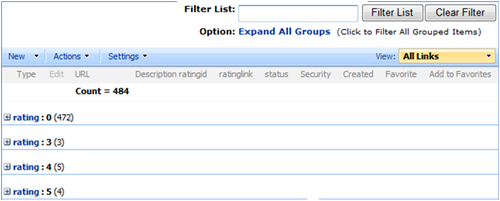
This image shows the new option to expand groups. This will only show up if the list is grouped.
Add Comments
You now have the ability to add comments to be show in the Filter Box. I noticed on some implementations that people added comments and so I made this a feature. It is very simple; if comments are added the options interface (read below) then it will show. If the comments field is blank then the comments area does not shows up. This is all done with the new interface that I will explain more below.
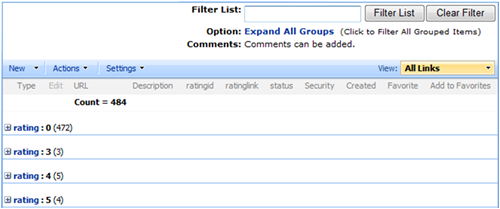
This image shows what it looks like with comments added.
Filter Box Position
I realized that some people like to have the filter box in different places. So I added the feature where you can designate if the filter box is to the right, center or left on the page. Again, no need to go into the code to figure this out. You can do this all from the new interface.
Options Interface
To improve on the end-user experience I have implemented a new way to make changes to various aspect of the solution without having to go into the code. All of the changes can now be done through the Rich Text Editor (RTE). That is correct, just choose Modify Shared Web Part for the edit pull down and then select Rich Text Editor in right panel. You will then be presented with a view of the options that can be changed. All the gray boxes are values that can be changed. Simply follow the Option’s Help to make the necessary changes. I will be deploying this on all future solutions. For CEWP solution developers I will be launching a site that will go over how to integrate this into your solutions.
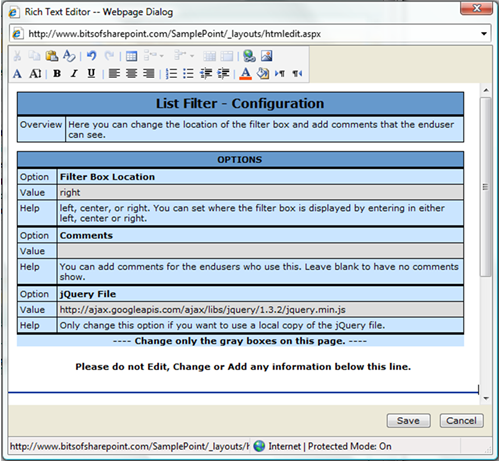
This image shows the new end-user interface to be code free in making changes.
Conclusion
Filter List version 2.0 now has improved speed, ability to address grouped lists, add comments, position the filter box, and a new options interface to make it easy to change these options. I look forward to your feedback on this latest version.
The new version 2.0 can be found here: http://www.bitsofsharepoint.com/ExamplePoint/Site/ListSearch.aspx
Guest Author: Peter Allen
BitsOfSharePoint
Peter Allen is a SharePoint enthusiast and evangelist having deployed solutions in Healthcare, financial, and engineering firms. He has worked in the technology field for 15 years creating solutions both internally and externally for clients. He has worked at start-ups, mid and larger corporations and has consulted. He currently hosts a site http://www.bitsofsharepoint.com where he blogs about solutions to extend the features of SharePoint.
- jQuery - List and Document Library Search Solution in SharePoint
- jQuery – List and Document Library Filter Version 2.0 - Part 2










Why doesn’t the Collapse option appear after we expand it?
Shalin,
The code for that to happen is there, I was not sure the best way to implement it, so it was not implemented. For example when you click collapse does it reset the filter or not.
If you would like test this for me I have a web part with it enabled. Just send me an email.
Anyone else wish this feature was available?
Peter,
Well I think when we say collapse it should go back to the default view as per my view, so i think it will reset the filter as well because it is no more applicable. What do you think?
Shalin,
Email me so that I can have you test out this feature. [email protected]
When editing the Filter box location, using the Rich Text Editor, from right to left, the whole List Filter Configuration shows. It should stay hidden.
I have the same issue if I change it to center.
Option Filter Box Location
Value left
Help left, center, or right. You can set where the filter box is displayed by entering in either left, center or right.
Option Comments
— This is what shows up —
List Filter – Configuration
Overview Here you can change the location of the filter box and add comments that the enduser can see.
OPTIONS
Option Filter Box Location
Value left
Help left, center, or right. You can set where the filter box is displayed by entering in either left, center or right.
Option Comments
Value
Help You can add comments for the endusers who use this. Leave blank to have no comments show.
Option jQuery File
Value http://ajax.googleapis.com/ajax/libs/jquery/1.3.2/jquery.min.js
Help Only change this option if you want to use a local copy of the jQuery file.
—- Change only the gray boxes on this page. —-
Please do not Edit, Change or Add any information below this line.
——————————————————————————–
Issue above. If I edit it in the Source Code it works fine.
Chris,
I am not sure from what you describe, what issue you are having. Can you email me, [email protected], with screen shots?
Screen shot of where the configuration editor is showing and a screen shot of th Rich Text Editor.
Thanks.
Peter -
I am getting this error on 2 different email accounts I am using to respond to you.
This is an automatically generated Delivery Status Notification.
Delivery to the following recipients failed.
[email protected]
Chris – Misspelling. “bits” not “bist” — Mark
This is a great tool, I just can’t get it to work right!
I have a document library with over 1500 documents and it only finds the items which are in view. I do have two groupings enabled on the view. I downloaded the latest version 2.1 and it does not find items that are not in the view. Please help!
Rene,
This is a limitation of the jQuery solution, so it ONLY searches what is viewable. If you are looking for a solution that can search the metadata on all 1500 documents then you will need to use this solution:
http://www.endusersharepoint.com/2010/05/03/sharepoint-search-lists-and-document-libraries-by-metadata/
Hope this helps.
This worked great, thanks for all your help. Great instructions, I was able to follow easily and I’m a novice with Sharepoint Designer.
Peter,
Is there a way to not show the expand\collapse options at all? Is it as simple as commenting out some code?
Thanks for this solution. It is a huge benefit
Scott
That is a good feature request. When I have time I will look at incorporating it. For now you can comment out or just take out the table row for option in the code. This can be found at the bottom of the code. This should only be done if your list is not grouped.
Option:
(Click to Filter All Grouped Items) (Click to Reset and Collapse List)