Power User Toolbox: JavaScript for SharePoint – Pt9
If you use the Content Editor Web Part to embed JavaScript on your SharePoint pages, you run the risk of someone with edit rights wiping out your scripts. I will present some strategies for preventing that. Since some of these techniques could lock everyone out, we also need to review the exit strategy.
Protect the Code
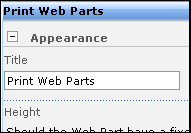
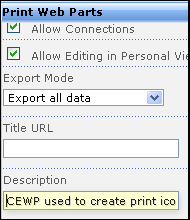 As I mentioned in part 6, you want to manage your code properly both in and out of SharePoint. But sometimes, your well-meaning coworkers might not understand that by closing or editing web parts, they could destroy your hard work. So here are some ideas to help avoid that:
Set Permissions Correctly
Protect edit rights to the web/site/page when possible. This will not effect the user’s ability to interact with the forms if you give them specific edit permissions to the list/library. While inheriting permissions from sites makes for simple administration, beware the users with contribute rights.
In-line Documentation
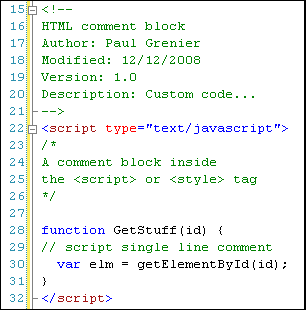
Document your web parts by editing the Title and Description fields. Use comments in your code liberally. A standard comment header with author, modified date, source file location, description, etc. can help anyone reading the page source understand your intentions.
Absolute Positioning
Move all non-displaying web parts, like JavaScript and CSS, to the bottom of the page/web part zone. This will make it less likely someone mistakes your custom code for their “Instructions for this Form” web part. Any time someone uses the Rich Text Editor of the CEWP, your code will not appear and will likely get erased when they save again.
Hide and Seek
This little bit of CSS can make your life much easier. First, make sure you have a browser with a JavaScript console or a CSS manipulation tool (Google’s Chrome, the IE toolbar, or Firebug).
Next, do all of the previous steps (set permissions, document, and position) for a new CEWP titled “Web Part Edit Controls.” Place the following CSS in there:
<style type="text/css">
.ms-WPHeader {display:none;}
</style>
Now, when you view the page in Edit mode, none of the web part title bars appear; and thus neither does the context menu.
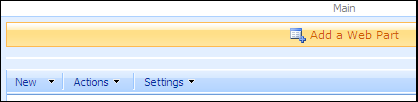
To reveal your web parts again, you have several options.
- In your JavaScript console, run the following:
- If you have jQuery on the page, you can run this instead:
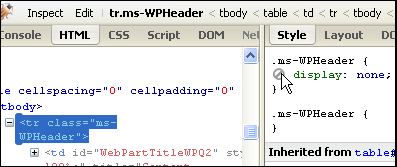
- In Firebug, or a similar tool, select the DOM element (web part) you need then change the display attribute’s value to “block” or remove the attribute.
- If all else fails, append “&contents=1″ to your URL, select the Web Part Edit Controls web part, and delete it.
var els = document.getElementsByTagName("TR");
var elsLen = els.length;
var pattern = new RegExp("(^|\\s)ms-WPHeader(\\s|$)");
for (i = 0; i < elsLen; i++) {
  if (pattern.test(els[i].className) ) {
    els[i].style.display = 'block';
  }
}
$("tr.ms-WPHeader").show()

- Power User Toolbox: JavaScript for SharePoint - Pt1
- Power User Toolbox: JavaScript for SharePoint - Pt2
- Power User Toolbox: JavaScript for SharePoint - Pt3
- Power User Toolbox: JavaScript for SharePoint - Pt4
- Power User Toolbox: JavaScript for SharePoint - Pt5
- Power User Toolbox: JavaScript for SharePoint - Pt6
- Power User Toolbox: JavaScript for SharePoint - Pt7
- Power User Toolbox: JavaScript for SharePoint - Pt8
- Power User Toolbox: JavaScript for SharePoint - Pt9











 on
on