Poll for SharePoint
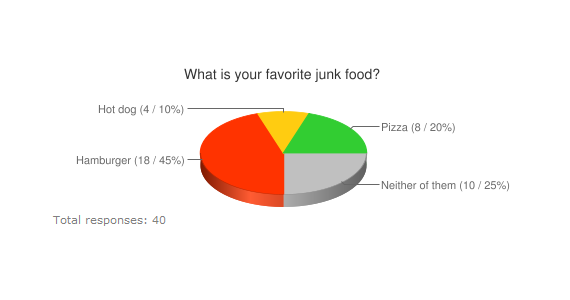
Guest Author: Alexander Bautz SharePoint JavaScripts This code lets you generate polls using JavaScript/jQuery only. No need for server side installed WebParts. Poll Result with bar chart Result with column chart Result with pie chart The charts are generated using Google Chart Tools / Image Charts (aka Chart API). Create a custom list with the following fields Answer: Single line of text Question: Single line of text Name it anything you like, but keep the display name fairly simple (no special characters) as you will use the display name in the ...
SharePoint Solution for Interdepartmental Business Process – Phase 1: Form Initiation
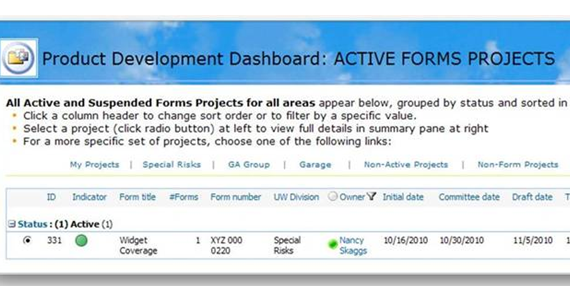
Guest Author: Nancy Skaggs Background We are a specialty commercial insurance company (Excess and Surplus Lines) that was acquired/merged with a larger corporate parent a couple of years ago. We continue to be challenged by the need to make our processes and practices more transparent to our parent company, especially since they have no experience with the type of business we write. Over time we have developed thousands of policy forms specific to our niche market. The process surrounding form creation, use and maintenance is a primary company function. The Regulatory department ...
SharePoint Managed Metadata Overview
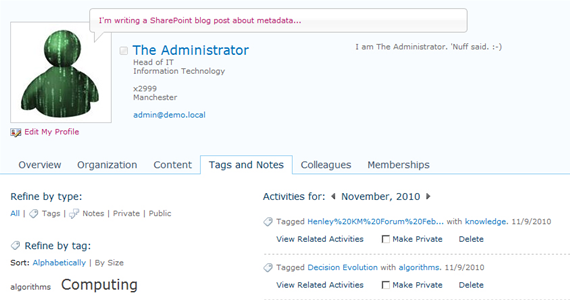
Guest Author: Sharon Richardson SharePoint.Sharon SharePoint has always had some form of metadata capabilities. However the latest version includes the first attempt at managing metadata. This post is a brief introduction and overview. First a quick (and very basic) primer on what is metadata. It is simply data about data – the stuff that describes a document (or any digital artefact). The title, author and date modified are all metadata properties. You can define your own properties such as category (what’s it about) or status (public, confidential). Metadata typically comes ...
Making Sense of SharePoint’s Workflow and BPM Capabilities
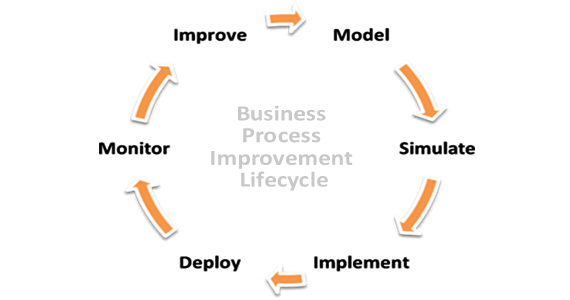
Guest Author: Ahmed Hafeez Edgewater Technology Workflow and BPM often get lumped together but it is important to understand the difference between them if you are to pick the right tool for your enterprise. While it is generally agreed that workflow is for modeling simple sequential processes and BPM solutions are more capable of handling complex tasks the distinction between the two needs to be further sharpened. According to David McCoy of Gartner BPM can be defined as “… a structured approach employing methods, policies, metrics, management practices and software tools to ...
The SharePoint Maturity Model, Version 1.0
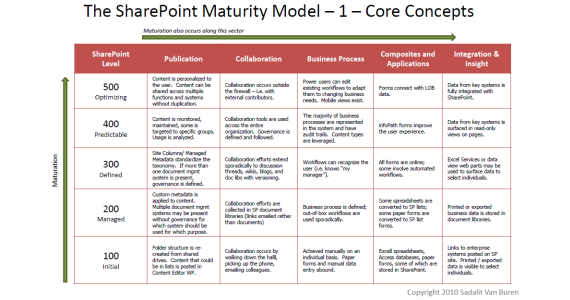
Guest Author: Sadie Van Buren A Matter of Degree As SharePoint gains in popularity and adoption worldwide, an increasing number of resources are available to help organizations understand and navigate the different aspects of this platform. What’s missing is a cohesive way to analyze and understand the system as a whole. Yet many experts have observed that, although SharePoint implementations vary from organization to organization, there is a typical progression of implementation, upward through each functional area and across the areas together. I created the SharePoint Maturity Model to apply a holistic view ...
SharePoint Community Events Need You: How You Can Get Involved – Part 1
Guest Author: Christian Buckley http://buckleyplanet.net One of the best things about the SharePoint community is that people really want to get involved and share their experiences. At a recent SharePoint Saturday event in Boston, I had a great conversation with a developer who had been through a couple deployments, and asked how he could best share his experiences and add to the vast best practice knowledgebase that is the SharePoint community. At the most recent SharePointPalooza event, held in beautiful downtown Seattle, I met several local end users who shared their perspectives on productivity solutions, ...


The Closing of EndUserSharePoint.com – Long Live End User SharePoint
On September 27, 2007 I published my first article on EndUserSharePoint.com (EUSP). Over 1800 articles and 14,000 comments have been published since then, not counting thousands of questions and responses on Stump the Panel, or the hundreds of events posted on the SharePoint Community Calendar. We also have the dubious honor of blocking over 100,000 spam comments in the past year. I have the privilege of being recognized by the community as a SharePoint evangelist, speaking at numerous SharePoint... [Read more]

Migrating to SharePoint 2010 with MetaVis Technologies: A case study with Citizen Schools
Guest Author: Peter Senescu MetaVis Technologies SharePoint 2010 provides the organization with a more robust set of authoring tools, social profiles and metadata management than its predecessor, SharePoint 2007, and these functions became central to new redesign. Read the full article on our new site at NothingButSharePoint.com Read More →

Show/Hide Lookup fields with jQuery
Guest Author: Alex Lee In this article, I will show you how to show and hide form fields dependent on the value of a drop-down list field. Read the full article on our new site at NothingButSharePoint.com Read More →

SharePoint 2010 Migration: Options & Planning
Guest Author: Ahmed Hafeez Edgewater Technology In this blog we will look at what is involved in upgrading to SharePoint 2010, various options available for the upgrade and initial planning that needs to precede the migration. Read the full article on our new site at NothingButSharePoint.com Read More →

Effectively communicate the power of SharePoint to a business audience
Guest Author: Michal Pisarek Most SharePoint consultants interact with a vast range of clients and I often find that organizations simply have no idea what SharePoint is, what it can do and most of all how they can apply it to solve their business issues. Read the full article on our new site at NothingButSharePoint.com Read More →

Microsoft, could you please erase SharePoint’s web interface? Please
Guest Author: Jose Antonio Morales I would say that SharePoint has three main parts: a server side, a natural client that is the web browser, and a web interface. The last one being the worse. Read the full article on our new site at NothingButSharePoint.com Read More →

Santa’s SharePoint Governance Strategy
Guest Author: Dux Raymond Sy Innovative-e, Inc. That’s not a typo on the title. Yes, this post is about Santa Claus using SharePoint. Read the full article on our new site at NothingButSharePoint.com Read More →

SharePoint Permissions: What, Why and How? Part 1 – Basic Principles
Guest Author: Clare Stone Pentalogic Technology The one thing in SharePoint which is sure to create new frown lines on the troubled brow of any SharePoint Newbie is Permissions. Read the full article on our new site at NothingButSharePoint.com Read More →

SharePoint 2010 Central Admin Maps Free Visio files
Guest Author: Dave Coleman SharePointEduTech Back in February I wrote a series of blog posts on central admin and included graphic maps: Read the full article on our new site at NothingButSharePoint.com Read More →

America’s Next Top Modeller! (With a surprising twist at the end)
Author: Ruven Gotz When you are working on getting the details right for your SharePoint projects, you need to produce, share and get feedback on a number of key artefacts. Things like wireframes, navigation maps, and content taxonomies. Read the full article on our new site at NothingButSharePoint.com Read More →
EndUserSharePoint.com is moving to its new home at NothingButSharePoint.com
I think the title says it all. After many trials and tribulations, NothingButSharePoint.com (NBSP) went live on Monday morning. NBSP combines the resources from Jeremy Thake’s SharePointDevWiki.com, Joel Oleson’s SharePointJoel.com and EndUserSharePoint.com. This will give you the ability to go to one single location for all things SharePoint, with content for all levels of SharePoint users. What does that mean for the site you are looking at now? In the next few days, we will be locking... [Read more]

SharePoint’s Inconvenient Truth
Guest Author: Derek E. Weeks Global 360 Inc. A new college grad working for me recently described SharePoint as “a convenience store without the convenience”. When remarking on his experience with SharePoint, he noted that content should be easy to find…but it isn’t, that he was accessing SharePoint sites frequently… but few sites offered a decent user experience, and that he needed to access several different productivity applications to get his work... [Read more]